Clouds
The Clouds section in TrueSKY allows you to add and customize realistic cloud formations in your scenes.
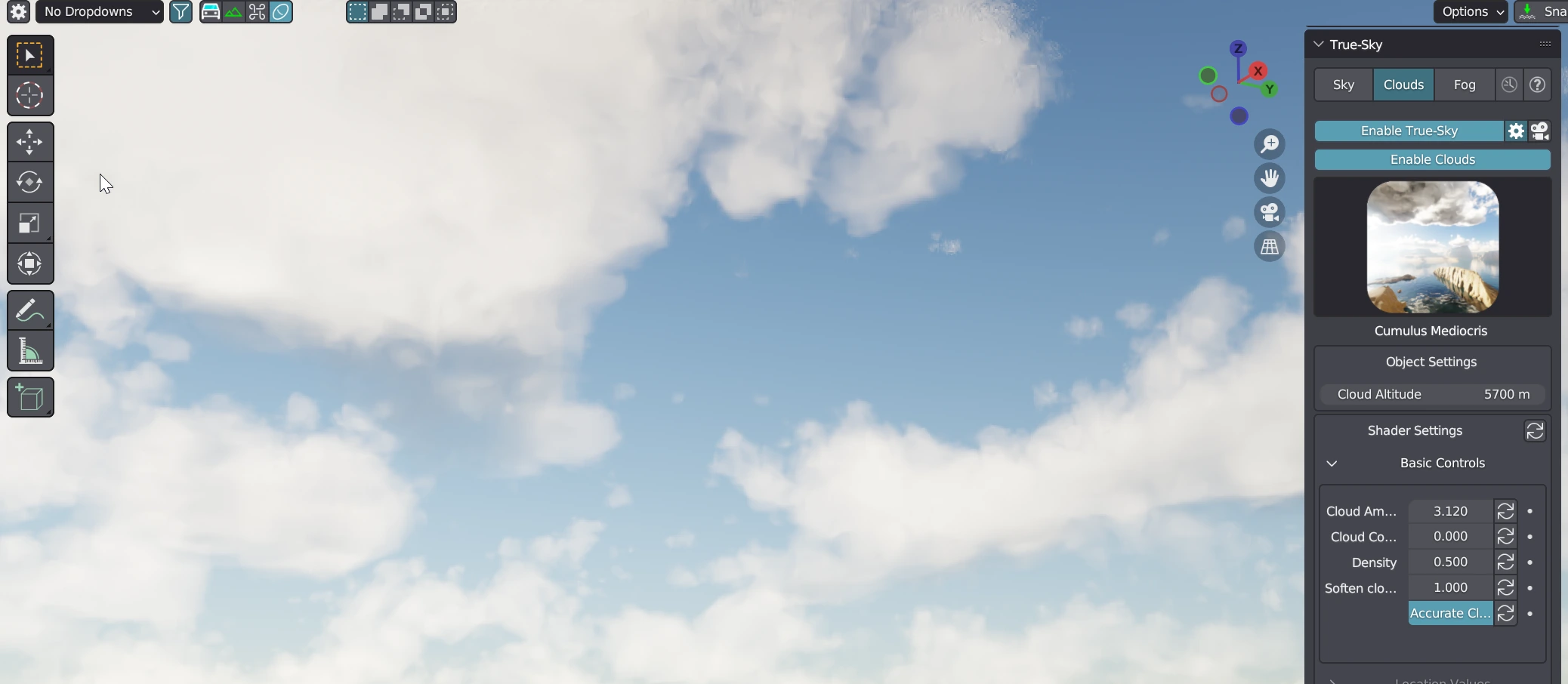
Cloud Usage
To use clouds in TrueSKY, make sure TrueSKY is enabled, as clouds are dependent on the values from TrueSKY world shaders to work correctly. Only one cloud type can be enabled at a time due to technical limitations, but future versions may allow combining multiple shaders.
Clouds can ONLY be used with TrueSKY
Use Clouds
Toggle to enable clouds in the scene.
Cloud Icon
Click to choose between different cloud types.
Cloud Altitude
Adjusts the height of the cloud object in meters, ranging from 1000m to 12000m. This represents the natural range for most cloud types within Earth's atmosphere.
TrueSKY MUST be enabled for you to be able to use clouds as they're dependent on values from TrueSKY world shaders to work correctly.
Cloud Basics
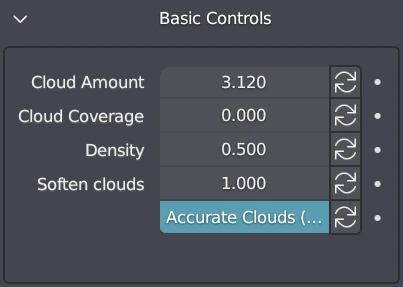
The Shader controls in the Cloud Basics section allow you to customize the appearance of the clouds and their impact on lighting in the scene.
Info
All clouds come with Shader controls that affect the way they look. Under the 'Basic controls,' you will find the most commonly used controls for changing how your clouds will look and how they will affect the light in the scene.
These controls are very powerful and can provide 1000's of variations of lighting and how your scene looks based on changes made to these controls.
Cloud Amount
Adjusts the density or amount of clouds.
Cloud Coverage
Changes the coverage of the clouds (available on some cloud types).
Band Fluffiness
Controls the fluffiness of the edges of the clouds (available on some cloud types).
Fill Gaps
Fills the gaps between clouds (available on some cloud types).
Density
Modifies the volume density of the clouds. Higher values result in thicker clouds that allow less light to pass through.
Soften Clouds
Reduces the amount of water vapor toward the edges of a cloud. Higher values can lead to reduced cloud coverage.
Location Settings
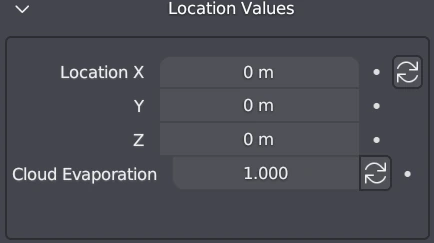
The Cloud Location settings allow you to move or animate the clouds within your scene.
Info
Cloud location controls are used both for moving clouds around in your scene or for animating them.
We recommend using Drivers to animate the clouds controls. The driver can be found in the TrueSKY help section under a button that will copy the driver values to your clipboard to be pasted into a location slot.
Location
Adjusts the position of the clouds on the X, Y, and Z axes.
Cloud Evaporation
Controls the amount of cloud evaporation. This control can be used for animation purposes or to randomize the cloud location for still renders.
Advanced Options
The Advanced Options provide additional controls for fine-tuning the appearance and behavior of the clouds.

Info
Advanced options are exactly that; they're not exactly options you need, but are there just in case. Here we hide the volume-bounce light hack, which simulates more volume render bounces.
Make em’ Sunny!
Toggle to give the clouds a yellow/orange scatter effect, creating a sun-kissed glow.
Cloud Height
Adjusts the height of the clouds.
Evaporation Animation Speed
Controls the speed of the cloud evaporation animation.
Location Speed Multiplier
Multiplies the speed of the location values.
Volume Bounce Hack
Toggle to enable an effect that mimics more light bounces inside volumes.
Hack Intensity
Adjusts the intensity of the bounce hack.