Day Settings
Day Sky
This documentation provides a brief overview of the different Controls available in the TrueSKY add-on for Blender. Please note that this is not a tutorial but rather a summary of the Controls to help you understand what each one does. For detailed tutorials, you can visit our YouTube Channel here.
True-Sol
Sol Settings
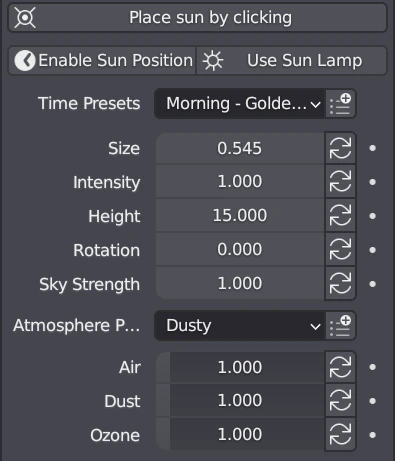
True-Sol
Represents the primary star in the TrueSKY system. It offers options to simulate various controls found in other sky simulation tools. These settings are based on real-world values to accurately replicate phenomena such as dust, air thickness, and sun position.
Sol Controls
Place Sun by Clicking
Set the position of the sun in the world shader by clicking in the viewport.

Enable Sun Position
Enable and use the Sun Position addon to correctly place the True-Sol sun in the sky. While enabled True-Sol's Height and Rotation cannot be manually edited. Disabling will keep settings from Sun Position
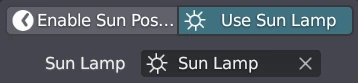
Use Sun Lamp
Enable and use Sun lamp to correctly place the True-Sol sun in the sky. While enabled True-Sol's Height and Rotation cannot be manually edited. Disabling will keep settings from Sun Position
Size
Adjusts the diameter of the sun (default: 0.545, representing the size of our Sun as seen from Earth)
Intensity
Controls the intensity of the sunlight
Height
Changes the sun's elevation in degrees (up to 90 degrees)
Rotation
Alters the rotation (azimuth) of the sun (-360 to 360 degrees)
Sky Strength
Adjusts the lighting strength of the sky
Air
Controls the thickness of the atmosphere
Dust
Changes the amount of dust in the atmosphere, affecting sunlight transmission
Ozone
Increases or decreases the amount of ozone in the atmosphere, influencing the color of the sky
Sol HSV
Sol Hue/Saturation/Value settings
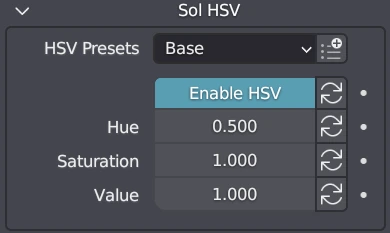
True-Sol HSV settings allow you to adjust the color values of the sky and sun. These settings affect the entire atmosphere, not just the sunlight.
HSV Controls
Use HSV Toggle
Enables the options to adjust the hue, saturation, and value of the sun
Hue
Changes the hue of the sun and sky
Saturation
Adjusts the saturation of the sun and sky
Value
Controls the lightness or darkness of the sun and sky
True-Binary
Binary Settings
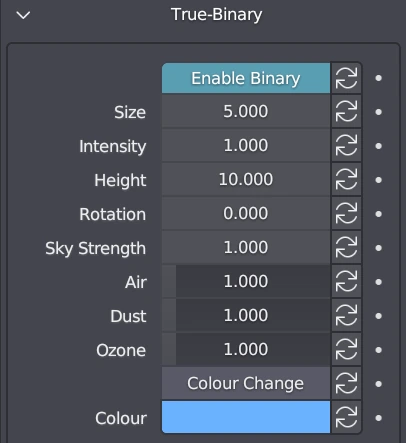
True-Binary represents the secondary star in the TrueSKY system. It offers options that are not typically found in other sky simulation tools. Enabling the Binary option allows you to simulate a second sun or sister star in a solar system.
Binary Controls
Enable Binary Toggle
Enables a secondary star
Size
Adjusts the diameter of the binary star
Intensity
Controls the intensity of the binary star's light
Height
Changes the elevation of the binary star
Rotation
Alters the rotation (azimuth) of the binary star
Sky Strength
Adjusts the strength of the binary star's lighting
Air
Controls the thickness of the atmosphere
Dust
Changes the amount of dust in the atmosphere
Ozone
Increases or decreases the amount of ozone in the atmosphere, influencing the color of the sky
Colour change Toggle
Enables the option to change the color of the binary star and sky
Colour
Adjusts the color of the binary star and sky using an RGB picker
Binary HSV
Binary Hue/Saturation/Value settings
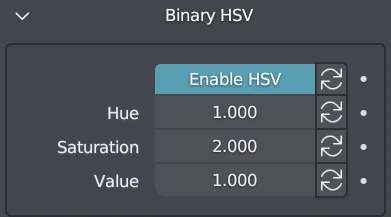
True-Binary HSV settings allow you to adjust the color values of the sky and binary star. Similar to Sol HSV, these settings affect the entire atmosphere.
Binary HSV Controls
Use HSV Toggle
Enables the options to adjust the hue, saturation, and value of the binary star
Hue
Changes the hue of the binary star
Saturation
Adjusts the saturation of the binary star
Value
Controls the lightness or darkness of the binary star
True-Haze
True-Haze Volumetric Settings
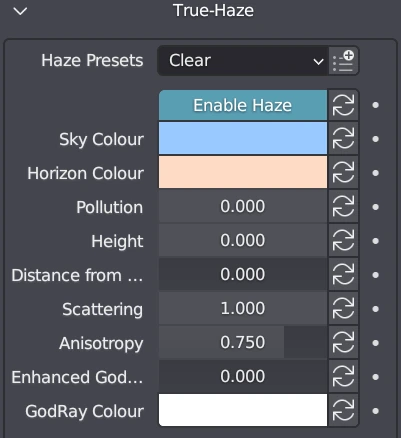
True-Haze represents a volumetric layer that simulates particles and pollutants in the atmosphere. It creates effects such as the "washed-out" appearance of distant objects and the glare/glow effect around light sources.
Haze Controls
Use Haze Toggle
Enables the addition of haze to the atmosphere
Sky Colour
Changes the color of the sky using an RGB picker
Horizon Colour
Changes the color of the horizon using an RGB picker
Pollution
Increases or decreases the level of pollution in the atmosphere
Height
Changes the height of the haze in the atmosphere
Distance from Camera
Adjusts the distance of the haze from the camera
Scattering
Changes the thickness of the haze, affecting the density of volumetrics
Anisotropy
Higher values create a glow effect around strong light sources, while lower values simulate a clear atmosphere (average for Earth is around 0.7)
Enhanced GodRays
Changes the strength of the god rays
GodRay Colour
Adjusts the color of the god rays
True-Fog
True-Fog Settings
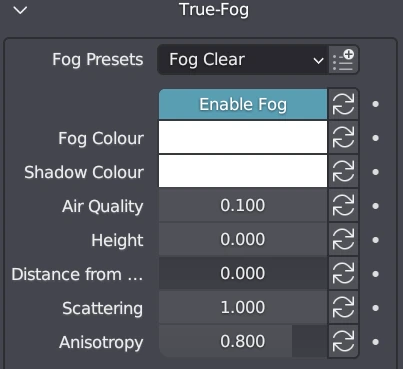
True-Fog represents a volumetric layer that simulates water molecules in the atmosphere. It creates a thick layer that can obstruct light and make distant objects difficult to see. Dense fog can even block out the sky.
Fog Controls
Use Fog Toggle
Enables the addition of fog to the atmosphere
Fog Colour
Changes the color of the fog using an RGB picker
Shadow Colour
Adjusts the color of the shadows using an RGB picker
Air Quality
Changes the quality of the air
Height
Changes the height of the fog in the atmosphere
Distance from Camera
Adjusts the distance of the fog from the camera
Scattering
Changes the thickness of the fog, affecting the density of volumetrics
Anisotropy
Higher values create a glow effect around strong light sources, while lower values simulate a clear atmosphere (average for Earth is around 0.7)
Presets
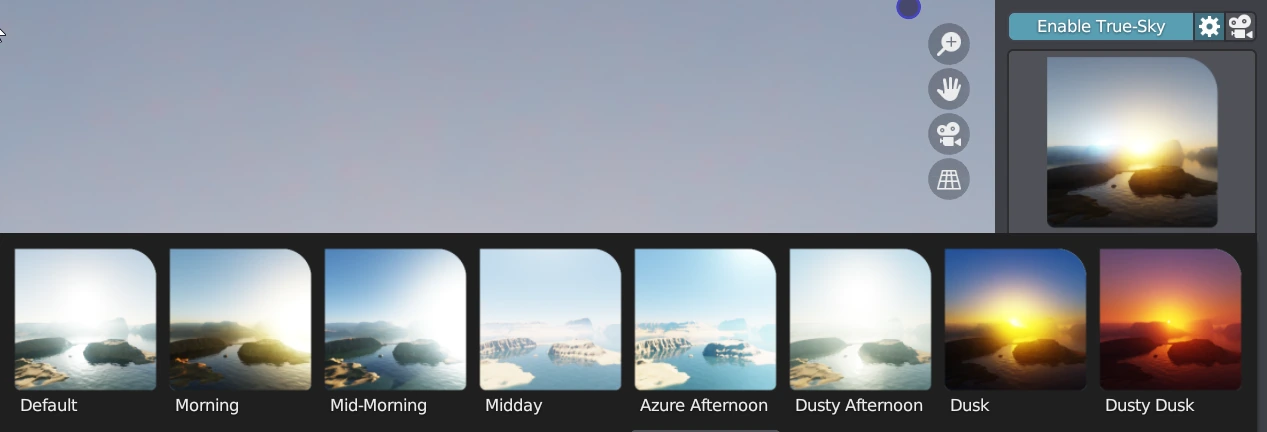
Presets provide pre-built sky setups to simplify the initial setup process. These pre-set skies can be used when you need to quickly set up a specific sky type.
Functions
Select a Preset: Choose a preset sky, and the world shader will automatically update to the selected configuration.
Please Note
This documentation provides a quick overview of the various Controls available in the TrueSKY add-on for Blender. For more detailed explanations and tutorials, please visit our YouTube Channel.