Performance Tab
The Performance tab allows you to optimize the performance of the TrueSKY addon by adjusting various settings
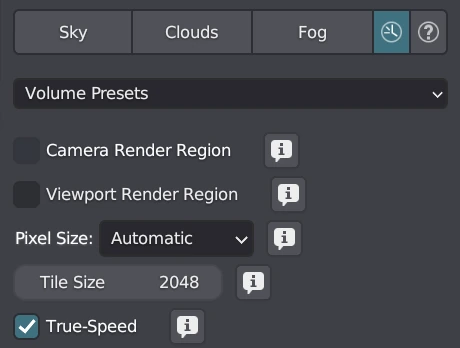
Volume Presets
Choose a volume preset that best suits your needs in terms of speed and quality.
- Fastest: Pure focus on speed.
- Fast: Most focus on speed.
- Balanced: Balance between speed and quality.
- High: Most focus on quality.
- Highest: Pure focus on quality.
Camera Render Region
This setting "blocks" any pixels outside of the camera's view from being rendered. Enabling this option limits the amount of rendering needed and speeds up viewport performance.
Viewport Render Region
Enable this option to limit what part of the scene is being rendered in the viewport. This is useful if you only want to preview a specific area. Enabling this option reduces the amount of work needed to render the viewport and improves performance. You can manually draw the viewport render region by pressing Ctrl + B or Cmd + B while hovering your mouse in the viewport.
Pixel Size
Decrease the amount of pixels rendered in your viewport by binning pixels into bigger chunks. This improves performance, especially if you have high-resolution monitors or a low-end compute device. Recommended settings:
- 2x to 4x at 1440p
- 4x to 8x at 4k or above
Tile Size
Change the size of the tile used in final renders. This is recommended if you're using a CPU to render or have a low-end GPU. Adjusting the tile size provides a visually more performant render and, in some cases, reduces the strain on your system, preventing it from hanging. Note that this may increase the amount of RAM used by a small percentage in some cases.
True-Speed
Enable this option to approximate diffuse indirect light with background-tinted ambient occlusion. This provides a fast alternative to full global illumination (GI) for interactive viewport rendering or final renders with reduced quality.
Warning
These performance settings allow you to optimize the TrueSKY addon for better performance and responsiveness in your Blender projects.